
Most SQL Server problems give warning signs long before they cause an outage: a backup job that has been failing quietly for weeks, a transaction log that keeps growing, a server that has not been patched in two years. A regular SQL Server health check finds these issues while they are still cheap to fix.
The timing matters this year. SQL Server 2016 reached the end of extended support on July 14, 2026, and Microsoft has said it is still heavily deployed. If your estate includes older versions, a health check is the quickest way to see your real exposure.
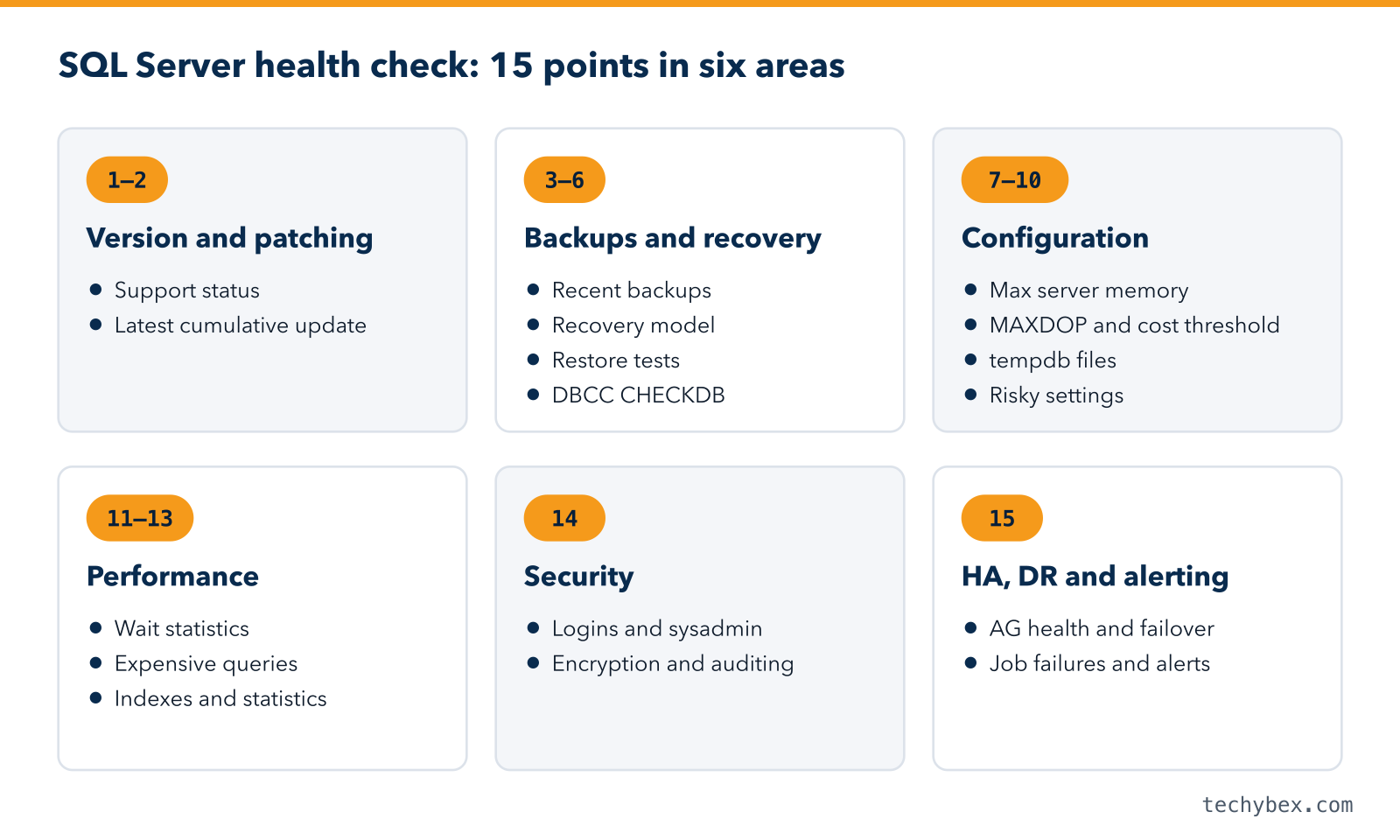
Here are the 15 checks, grouped by area. For each one you’ll find what to look at, why it matters and what a healthy result looks like.
How to Use This Checklist
- Run the full check every quarter and after any major change, such as an upgrade, migration or new application release.
- Record the results so you can compare them over time.
- Rate each finding as Critical, High or Medium, and fix Critical items first.
- Most checks only read system views and are safe to run during business hours. Run DBCC CHECKDB off-peak.
Version, Support and Patching
1. Check the Version and Support Status
Run SELECT @@VERSION; or check SERVERPROPERTY(‘ProductVersion’) on every instance. Compare each version with Microsoft’s lifecycle dates:
- SQL Server 2014 and earlier: out of support.
- SQL Server 2016: extended support ended July 14, 2026. Extended Security Updates (ESU) are available at extra cost.
- SQL Server 2017: extended support ends October 12, 2027. Start planning now.
Unsupported versions receive no security fixes, which can also create audit and compliance problems. See Microsoft’s end-of-support overview for current dates.
2. Confirm the Latest Cumulative Update Is Installed
Since SQL Server 2017, Microsoft delivers fixes through Cumulative Updates (CUs) rather than service packs. Compare your build number with the latest updates list. Being several CUs behind means missing both security and performance fixes.
Backups and Recoverability
3. Verify Every Database Has a Recent Backup
Query msdb.dbo.backupset for the last full, differential and log backup of every database. Look for databases with no backup at all, which often happens when a new database is added and nobody updates the backup job.
4. Match the Recovery Model to the Backup Plan
A database in the FULL recovery model needs regular transaction log backups. Without them, the log file grows until it fills the disk. If you do not need point-in-time recovery for a database, the SIMPLE recovery model may be the right choice.
5. Test Your Restores
A backup that cannot be restored is not a backup. Use WITH CHECKSUM on backups, and restore a sample of databases to a test server on a schedule. Record how long the restore takes and compare it with your recovery time objective. If you store backups in Azure, our guide on SQL Server backup to URL explains how that works.
6. Run DBCC CHECKDB Regularly
DBCC CHECKDB detects database corruption. Run it at least weekly on important databases, off-peak or on a restored copy. Also confirm PAGE_VERIFY is set to CHECKSUM and check msdb.dbo.suspect_pages for any recorded errors.
Configuration
7. Set Max Server Memory
By default, SQL Server can take almost all of the server’s memory, leaving too little for the operating system. Set max server memory so Windows or Linux keeps enough headroom for itself and any other services on the server.
8. Review MAXDOP and Cost Threshold for Parallelism
The default cost threshold for parallelism is 5, which is very low for modern hardware and causes many small queries to run in parallel. Many teams start at 50 and adjust based on workload. Set MAXDOP according to Microsoft’s guidance for your core and NUMA layout. Setup suggests a value automatically from SQL Server 2019 onwards.
9. Configure tempdb Properly
tempdb is shared by every database on the instance. Use multiple data files of equal size (one per logical core, up to eight, is a common starting point), give them the same growth settings, and place them on fast storage.
10. Fix Risky Database Settings
- AUTO_SHRINK should be OFF. Shrinking and regrowing causes fragmentation and wasted I/O.
- AUTO_CLOSE should be OFF on server workloads.
- Autogrowth should use fixed sizes in MB, not percentages.
- Instant File Initialization should be enabled so data files grow quickly.
Performance
11. Review Wait Statistics
sys.dm_os_wait_stats shows what SQL Server spends its time waiting on. It is the fastest way to find the main bottleneck.
Wait type |
What it usually points to |
| PAGEIOLATCH_* | Slow storage or queries reading too much data |
| CXPACKET / CXCONSUMER | Parallelism settings or large scans |
| LCK_M_* | Blocking between sessions |
| WRITELOG | Slow transaction log storage or very frequent commits |
| SOS_SCHEDULER_YIELD | CPU pressure |
For blocking problems, see our guide to understanding and troubleshooting database blocking.
12. Find the Most Expensive Queries
Use Query Store (on by default for new databases from SQL Server 2022) or sys.dm_exec_query_stats to list queries by CPU, duration and reads. Query Store also shows when a query’s plan changed and performance dropped, and lets you force the previous good plan. Microsoft’s Query Store documentation covers setup and use.
13. Check Index and Statistics Maintenance
- Treat missing index suggestions from the DMVs as hints. Review them before creating anything.
- Use dm_db_index_usage_stats to find indexes that are written to but never read, and consider removing them.
- Keep statistics up to date. On modern SSD storage, fresh statistics usually matter more than rebuilding every index every night.
Security
14. Review Access and Security
- List members of the sysadmin role and remove anyone who does not need it.
- Disable or rename the sa login, and remove weak or unused SQL logins.
- Run SQL Server services under least-privilege accounts.
- Encrypt sensitive data at rest with Transparent Data Encryption (TDE) and encrypt backups.
- Enable auditing for logins and permission changes.
Our article on database security essentials goes deeper on each of these.
High Availability and Monitoring
15. Check HA, DR and Alerting
- For Always On availability groups, check synchronisation health in dm_hadr_database_replica_states and watch the log send and redo queues.
- Confirm failover has been tested recently, not just configured.
- Review SQL Server Agent job history for failures.
- Create alerts for severity 19 to 25 errors and for errors 823, 824 and 825, which signal I/O and corruption problems.
- Make sure alerts reach a person who will act on them, 24×7.
SQL Server Health Check Summary
| # |
Check |
Priority |
| 1 | Version and support status | Critical |
| 2 | Latest cumulative update | High |
| 3 | Recent backups for every database | Critical |
| 4 | Recovery model matches backup plan | High |
| 5 | Restore testing | Critical |
| 6 | DBCC CHECKDB and page verification | Critical |
| 7 | Max server memory | High |
| 8 | MAXDOP and cost threshold for parallelism | Medium |
| 9 | tempdb configuration | Medium |
| 10 | Risky database settings | Medium |
| 11 | Wait statistics | High |
| 12 | Most expensive queries | High |
| 13 | Index and statistics maintenance | Medium |
| 14 | Access and security | Critical |
| 15 | HA, DR and alerting | Critical |
How TechyBex Helps
TechyBex DBAs run SQL Server health checks and 24×7 managed services for businesses across India and the Middle East, on-premises and on Azure and AWS. We find the risks, fix them in agreed change windows, and help you plan upgrades away from out-of-support versions. If you are considering the cloud, read why SQL Server runs best on Azure.
Explore our Database Managed Services.
Frequently Asked Questions
1. How often should I run a SQL Server health check?
Run a full health check every quarter and after any major change. Automate the daily essentials, such as backup success, job failures and disk space, so problems are caught between full checks.
2. What happens if I keep running SQL Server 2016 after end of support?
It keeps working, but Microsoft no longer releases security updates or fixes unless you buy Extended Security Updates. That increases security and compliance risk over time, so plan an upgrade or migration.
3. Can a SQL Server health check be done without downtime?
Yes. Almost every check reads system views and has no noticeable impact. The exception is DBCC CHECKDB, which is resource-intensive and should run off-peak or on a restored copy of the database.
4. What does a TechyBex SQL Server health check include?
It covers version and patch status, backups and restore readiness, configuration, performance, security, and high availability, with a written report that ranks every finding by priority.
Where to Start
A SQL Server health check turns hidden risks into a clear, prioritised to-do list. Start with support status, backups and security, then move on to configuration and performance. Repeat it every quarter, and your SQL Server estate will stay fast, safe and supported.